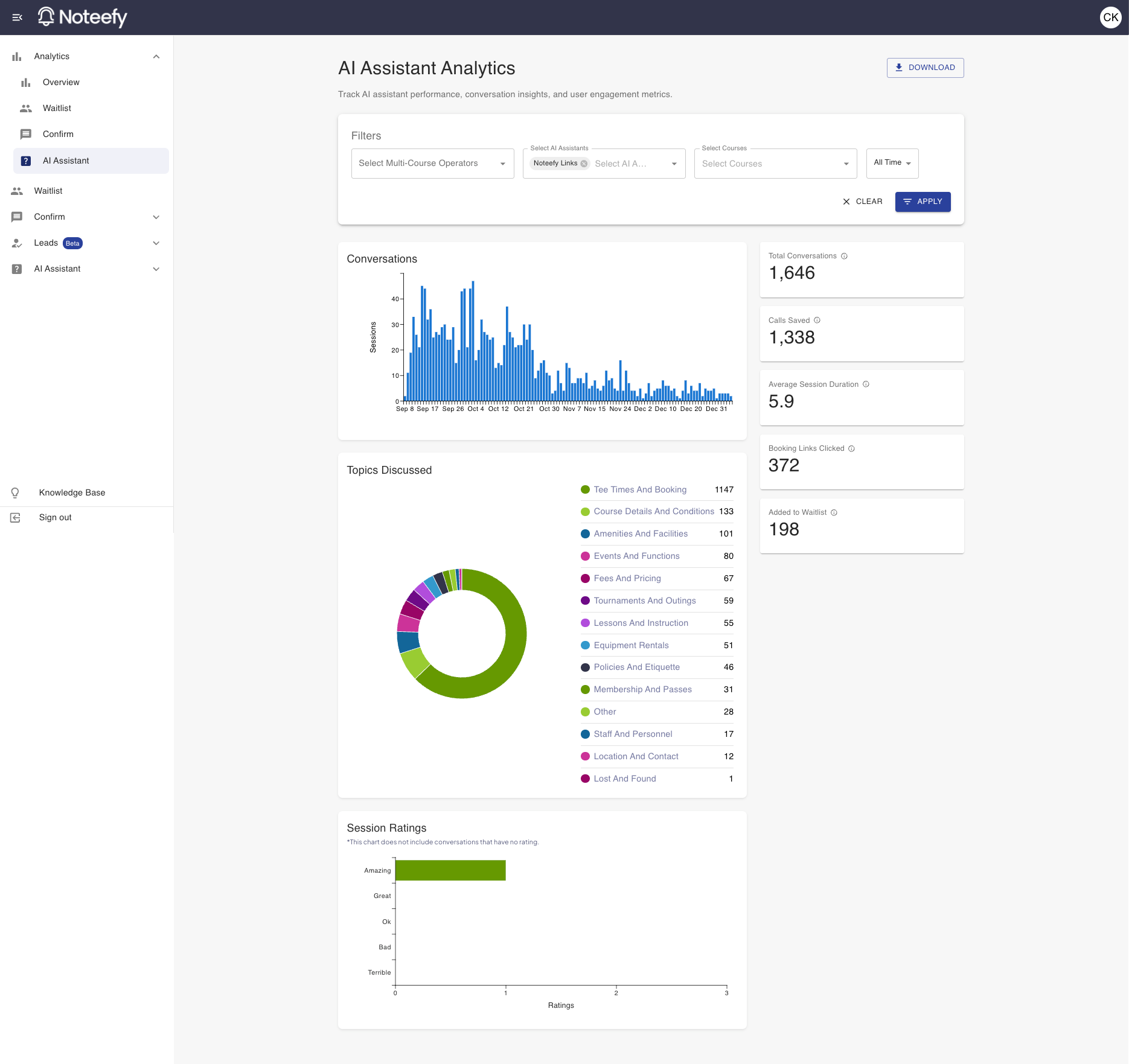
Noteefy’s AI Assistant Analytics gives you visibility into how your course is performing with Noteefy’s AI Assistant product. Use this data to make smarter decisions, optimize operations, and elevate the golfer experience.
🧠 Looking at the data you want
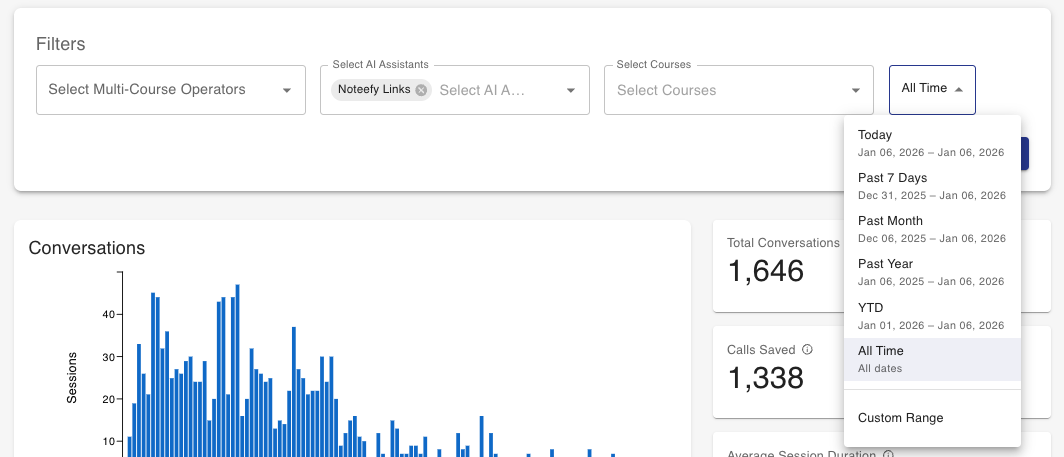
Use the filters at the top of the page to focus on the data most relevant to you—by assistant (if you manage multiple) or by time range.
- If you have access to only one AI Assistant, it will be selected by default.
- By default, the dashboard shows data for the full time period since Noteefy was activated at your course.
- To narrow the view, click the ‘All Time’ dropdown. Choose a preset (e.g., “Past 7 Days,” “Past Month”) or set a Custom Range.
- Click Apply to have the data begin loading if it isn’t loaded already
🛠️ Understanding the Metrics
The dashboard includes metrics that show how Noteefy is impacting your operations. Here’s what each report means:
- Conversations: Total conversations with the AI Assistant, broken down by day
- Topics Discussed: This chart gives you an understanding of what people are asking about in their conversations with your AI Assistant. The topics are automatically applied to conversations based on the conversation itself
- Total Conversations: Total number of conversations handled by AI assistants
- Calls Saved: Number of phone calls saved through AI assistant interactions
- Average Session Duration: Average duration of AI assistant conversations
- Booking Links Clicked: Number of booking links clicked from AI assistant conversations
- Added to Waitlist: Number of users added to waitlist through AI assistant
- Session Ratings: This chart gives you a sense of how users are rating their conversations with your AI assistant. Conversations that do not get rated will not show up here.
💡 Downloading & Sharing Your Results
Want to share your Noteefy performance with others on your team—or for a board meeting?
Click the Download button in the upper-right corner of the dashboard to generate a PDF. The PDF includes all waitlist reports filtered down to how you are looking at it in the app. Use this to showcase wins, inform strategy, or report results to leadership.
📞 Need Help?
Your Customer Success Manager can help you get started or review your setup.
📧 Email: customersuccess@noteefy.app