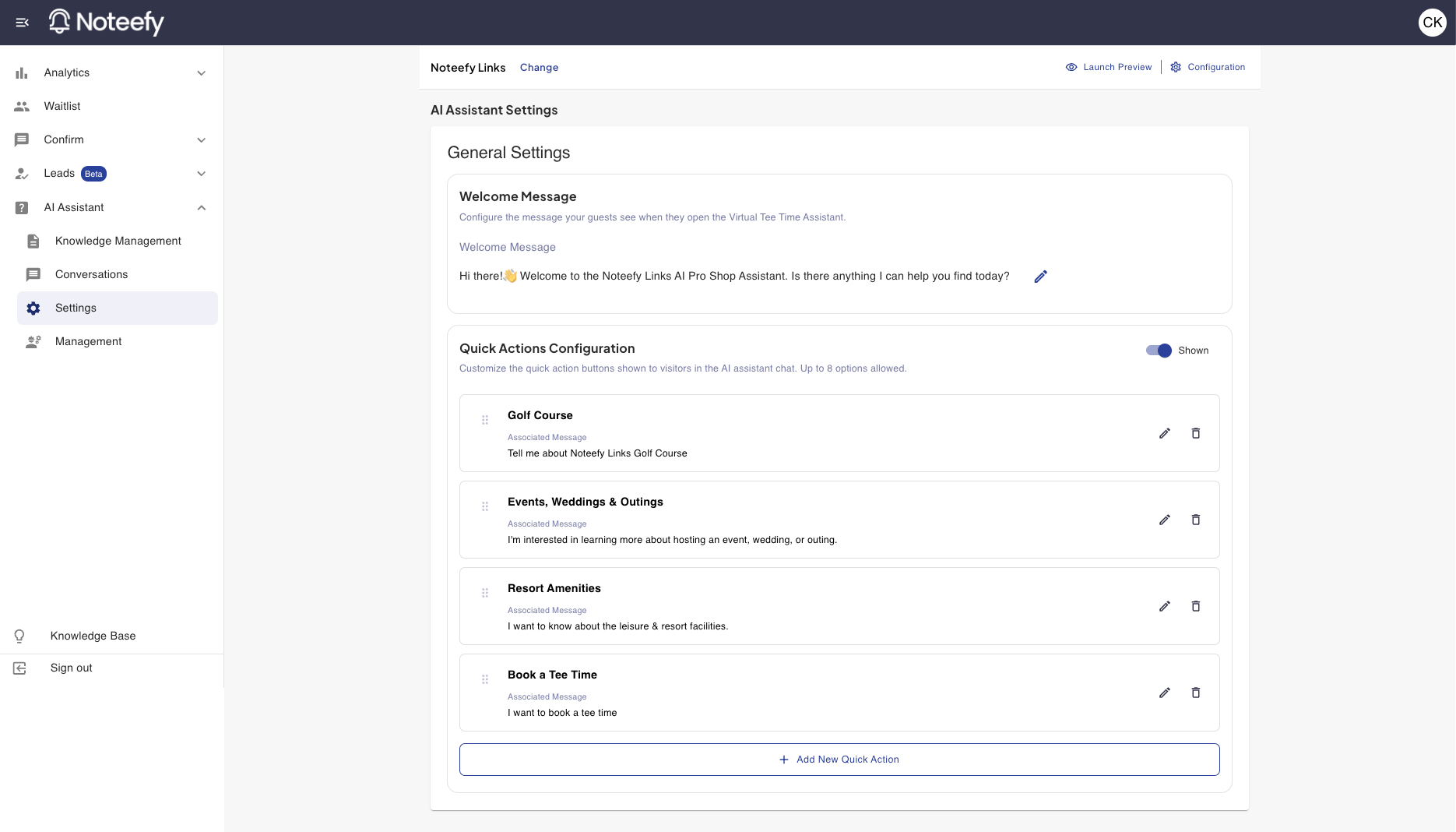
Use the Settings tab to control your Virtual Tee Time Assistant’s welcome message, as well as what buttons show up for a customer when they open your AI assistant. This ensures your Assistant is best set up to serve your customers quickly with the information they are most likely to be interested in.
Welcome Message
This is the greeting message golfers see when they open the AI Assistant.
To update the message:
- Go to: AI Assistant → Settings → General Settings
- Click the ✏️ icon next to the message
- Edit the text and save
Example Default Message:
"Hi there! 👋 Welcome to the AI Pro Shop Assistant. Is there anything I can help you find today?"
Tip: Use a tone that matches your course’s personality—friendly, helpful, and professional
Quick Actions Configuration
This functionality allows you to do a couple of things:
- You can turn on/off whether or not buttons are shown at the start of a customer opening your AI assistant. We’d normally recommend having some options showing, however if you want to encourage customers to go straight to asking a question turning off your quick action buttons would be your best bet.
- If on, you can adjust what your quick action buttons say. By default there will be four commonly used options across our customers, however you can easily delete or edit those buttons to your liking in addition to adding new ones. To do this, simply click the pencil icon to edit an existing button, the trash can icon to delete an existing button, or the ‘add new quick action’ button at the bottom of the page to add a new button.
Google Analytics & Tag Manager Integration
You can connect Google Analytics or Google Tag Manager to your AI Assistant to track golfer engagement alongside your other website analytics.
To set it up, scroll to the bottom of the page and enter your Google Analytics ID (G-XXXXXXXXXX) or Google Tag Manager Container ID (GTM-XXXXXXX). Once connected, the following events will fire automatically:
| Event Name | When It Fires |
|---|---|
virtual_assistant_message_sent | A golfer sends any message through the assistant |
virtual_assistant_quick_action_clicked | A golfer clicks a quick action button |
virtual_assistant_waitlist_created | A waitlist search is successfully created |
virtual_assistant_tee_sheet_clicked | A golfer clicks Book on a tee time card |
Each event passes additional parameters to your data layer:
| Parameter | Associated Event & Notes |
|---|---|
| (none) | virtual_assistant_message_sent fires with the event name only — no custom parameters. |
quick_action_label | virtual_assistant_quick_action_clicked |
waitlist_search_type | virtual_assistant_waitlist_created — value is 'specific_dates' or 'recurring' |
selected_course_ids | virtual_assistant_waitlist_created — array of course IDs (GTM data layer); comma-separated if using direct GA4 gtag |
selected_dates | virtual_assistant_waitlist_created — only when waitlist_search_type is specific_dates; array of YYYY-MM-DD strings |
start_date, end_date | virtual_assistant_waitlist_created — only when recurring; subscription window as YYYY-MM-DD |
days_of_week | virtual_assistant_waitlist_created — only when recurring; array of day values (strings, same as subscription payload) |
course_id, tee_time_date, tee_time | virtual_assistant_tee_sheet_clicked — tee_time_date is YYYY-MM-DD; tee_time is a slot time string (e.g. 24h format from API) |
✅ Best Practices
- Update your welcome message and quick action buttons to reflect seasonal or event-specific info. Are you a northern course in winter? Change your buttons to be less about summer golf and more about golf simulator options or other winter amenities you offer.
- Highlight commonly asked questions to your property with quick action buttons. Have a great banquet hall that receives a lot of inquires about weddings? Create a ‘Wedding inquiries’ button that prompts your assistant to ask about the banquet hall and weddings in general. The more you tailor those buttons to your common questions, the more likely you are to reduce calls to your property.
💬 Need Help?
Reach out to your Noteefy Customer Success Manager or email customersuccess@noteefy.app for help configuring your Assistant settings.