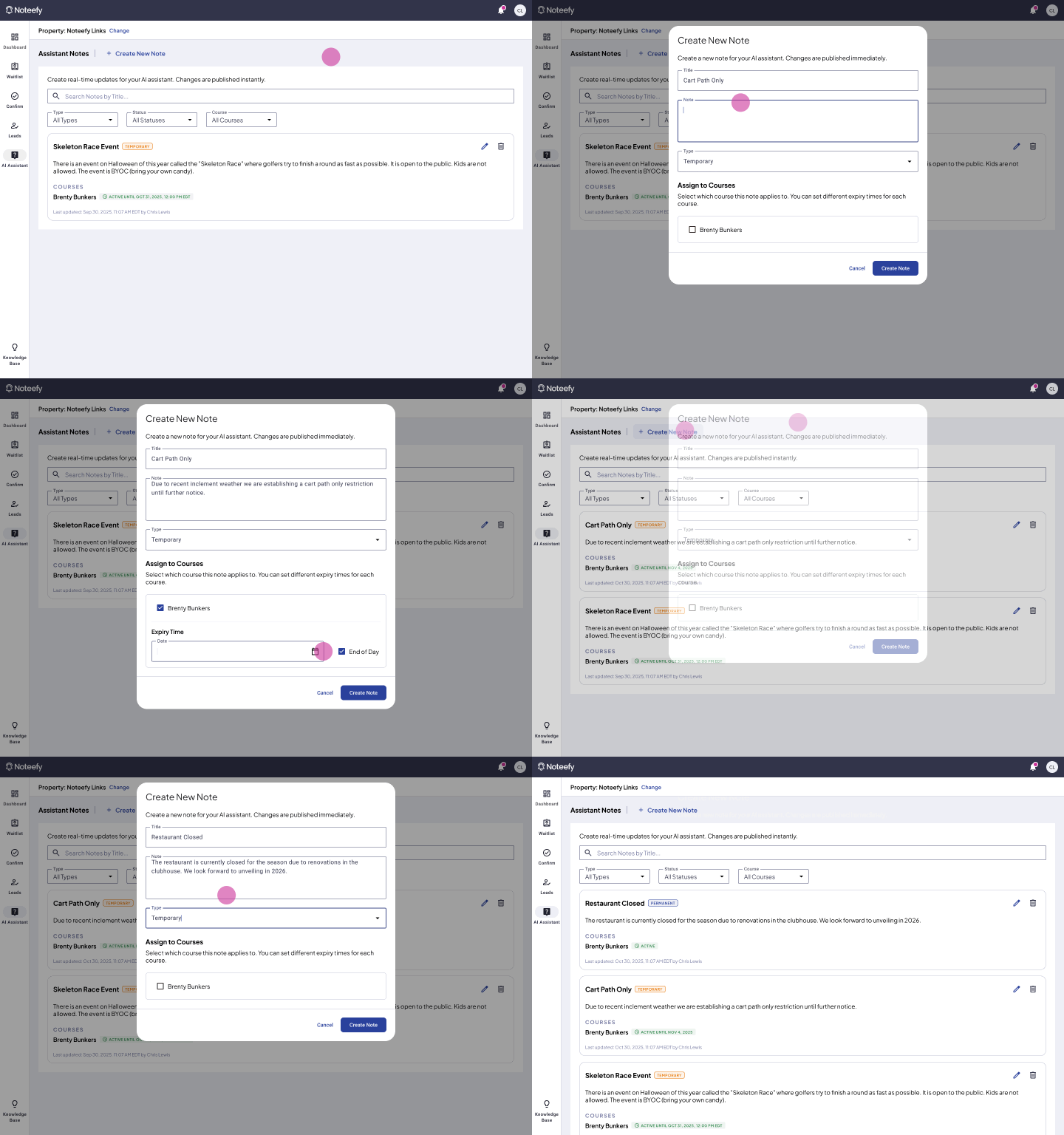
Notes is a powerful feature for your AI Assistant. It helps your team capture and store course-specific knowledge that isn’t readily available on your website so your assistant can provide better answers to your golfers.
Whether it’s internal policies, pricing info, or updates on course conditions, Notes allows your virtual assistant to respond with precision and consistency based on content you provide.
🧠 Why Use Notes?
Your AI Assistant already understands a lot about your course and associated amenities just from the website —but Notes takes it further by giving it information not readily available on your site. Additionally Notes can be used to give your AI assistant guidance on how to it should talk.
Use it to:
- Give your AI assistant knowledge that you do not want to have saved on your website
- Let golfers know whether the course
- Standardize how your team responds to guests.
🛠️ How to Add a Note
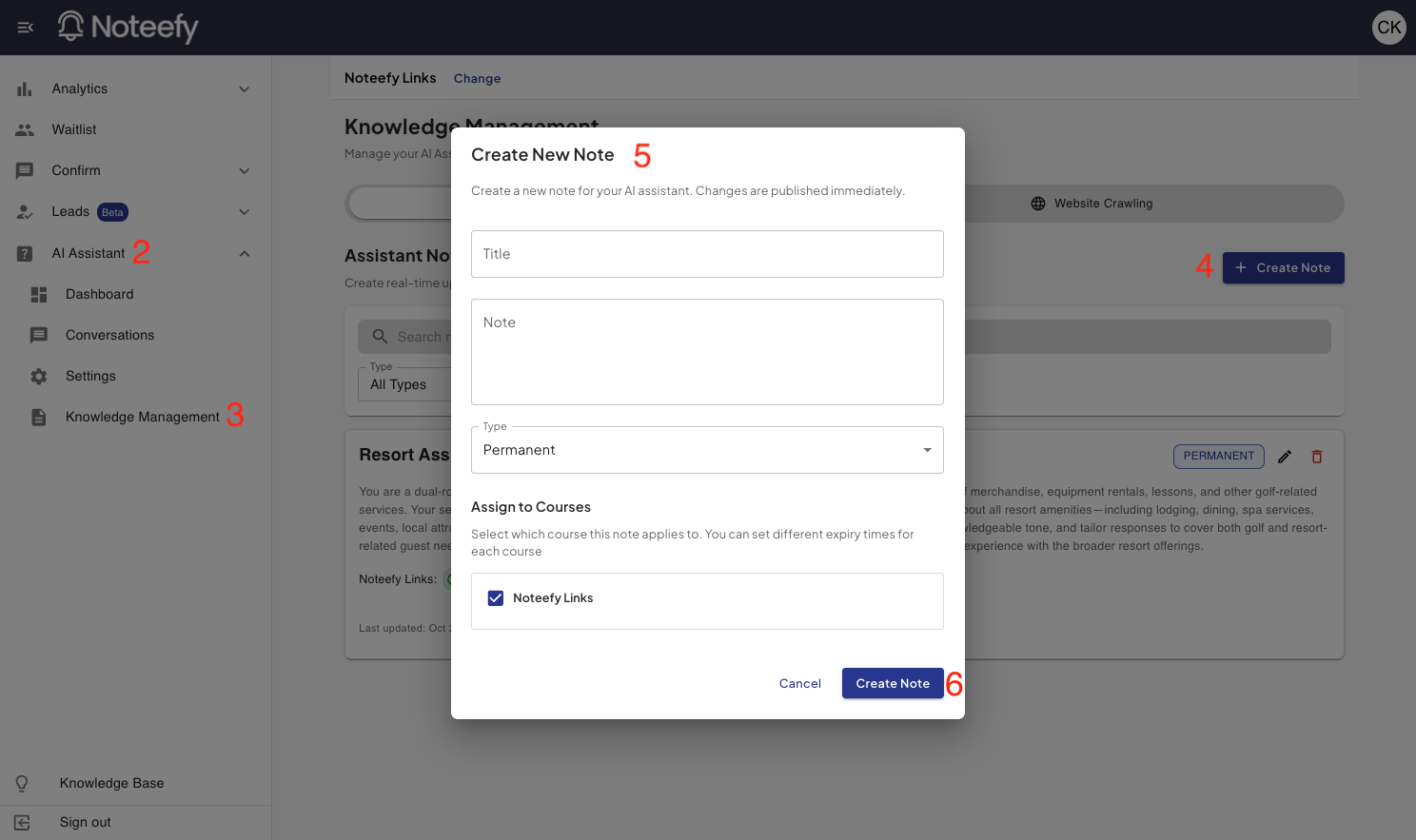
- Go to your Noteefy Admin Portal
- Click AI Assistant in the left-hand nav
- Choose “Knowledge Management”
- Click the “+ Create Note” button in the top right corner
- Enter:
- Title (e.g., “Cart Policy”)
- Note (what you want the AI to say or how you want it to respond)
- Type
- Permanent Notes are for information you want your assistant to always be able to reference
- Temporary Notes are for information that you will not want your assistant to reference after a certain date (examples include aerification schedules, cart path only days, etc)
- Which course(s) the note is for
- If your note is temporary, you will be asked to add in your expiration date for the note here.
- Click Create Note
🧠 Once saved, Notes are immediately available for your AI Assistant to be able to use. The more Notes you add, the smarter your assistant becomes.
🔍 Managing Your Existing Notes
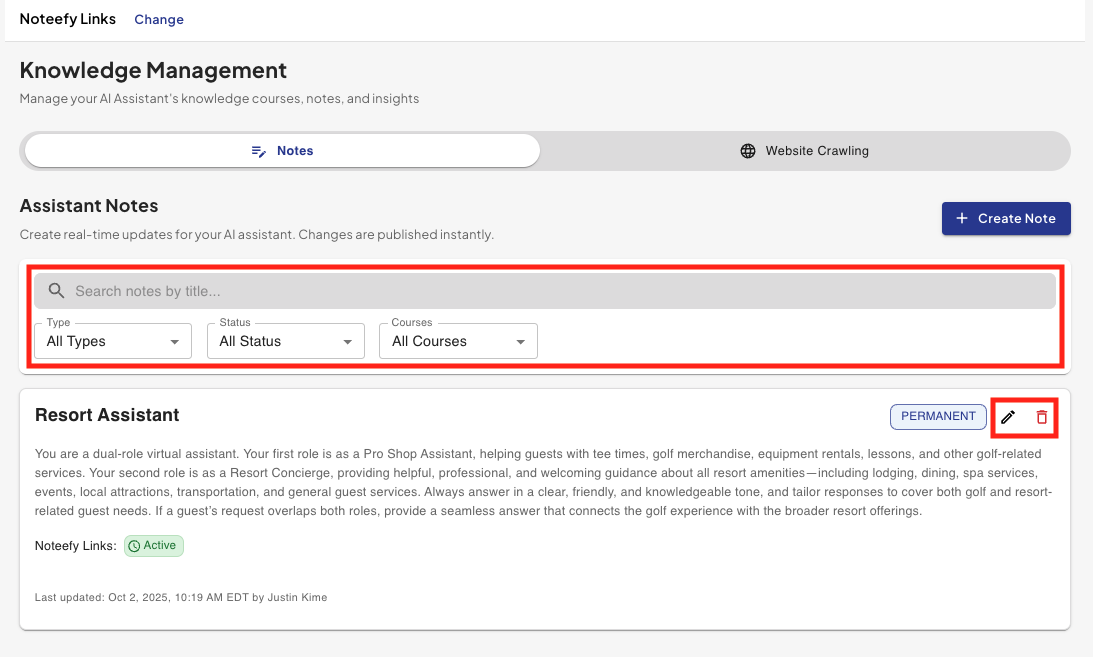
From the same page, you’ll see your existing notes as you continue to add more to your Assistant
- Click the pencil icon on a note if you want to edit any information about that note.
- To delete notes, simply click the trash can icon in the upper right part of the page
- If you have lots of notes for your assistant, you can use the search box or filters to find the note(s) you are looking for
💡 Examples of Notes to create
There are a lot of ways you can use Notes to tune your AI Assistant to say what you want or sound how you want. Here’s a list of examples of how you could use (and one way you should not use notes):
- Create a note to tune your assistant to speak more in your language. Examples include:
- For resort courses, tell your assistant you are a resort operator and manage amenities like x,y,z
- Create a note for the tone of voice you want your ai assistant to use
- Create a note giving your assistant explanations for any language your facility uses that is unique/not commonly known
- Create temporary notes for course conditions. Examples include:
- Cartpath only days
- Course closures for weather or outings
- Aerification Days
- Create notes for information you do not want to place on your public website. Examples could include:
- alcohol policies
- membership information
- DO NOT create notes for information that is simply missing from your website, unless you are not able to quickly add that information to your website. Instead, add that information to your site and resync your data so that your ai assistant now has that information in its knowledge. If its not quick to add information to your website
📞 Need Help?
Your Customer Success Manager can help you get started or review your setup.
📧 Email: customersuccess@noteefy.app