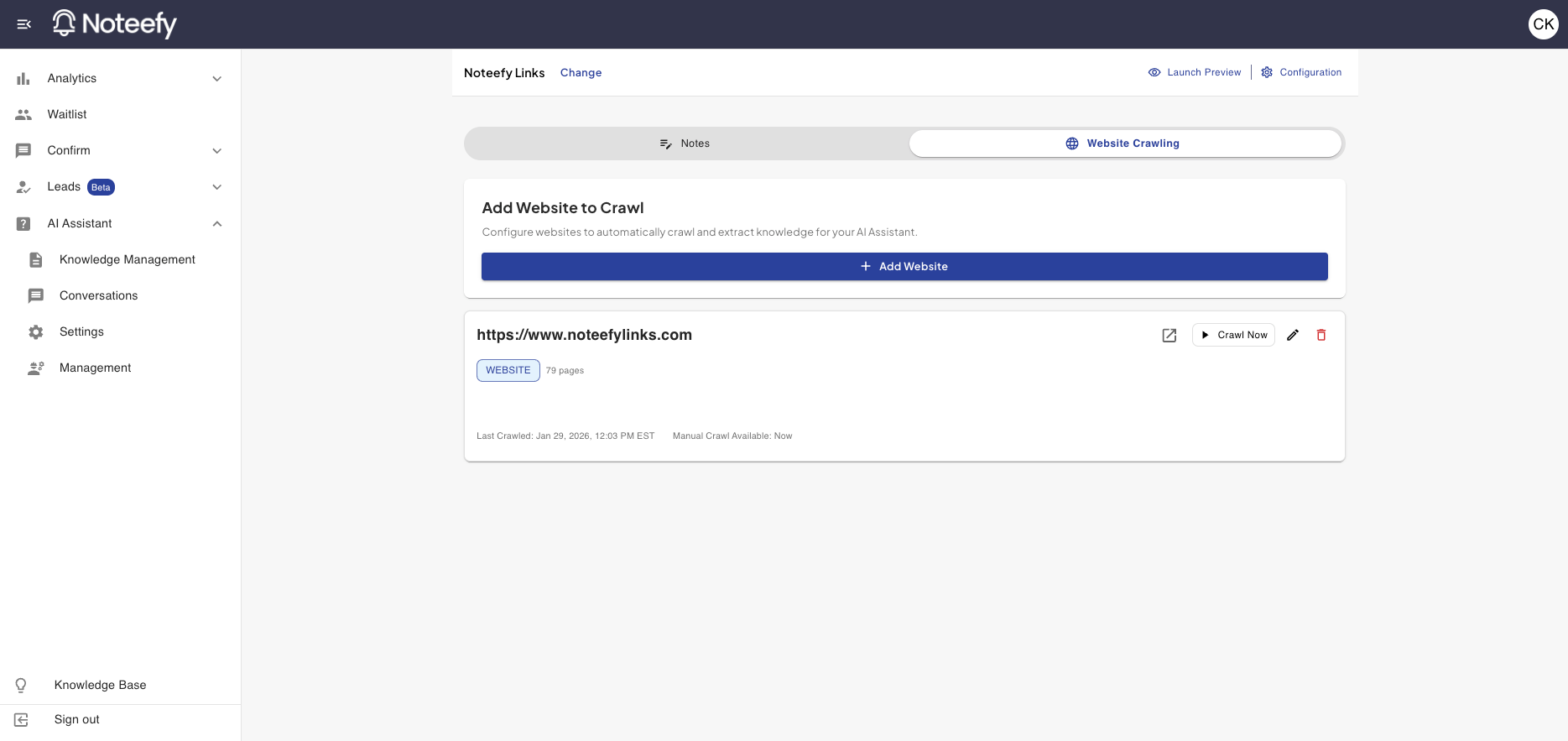
Website Crawling is the foundational building block for your AI Assistant. It gives your AI Assistant the basics of the information it’ll need to respond effectively to your customers by sourcing knowledge from the site(s) you tell it to.
To start, the Noteefy team will create an initial version of your AI Assistant that sources information from your main website. This may end up being everything you need, but you may also want to add other website(s) or edit what was initial set and this will be the spot to do it.
🧠 What is Website Crawling?
You may be asking yourself what exactly website crawling is. Website crawling is when a computer program automatically visits websites and looks through their pages, kind of like a very fast reader flipping through a book. It follows links from one page to another to see what information is available. In Noteefy’s context, we use crawling to discover new pages and keep the source of your AI Assistant’s context as up to date as possible.
🛠️ Managing your Existing Website(s)
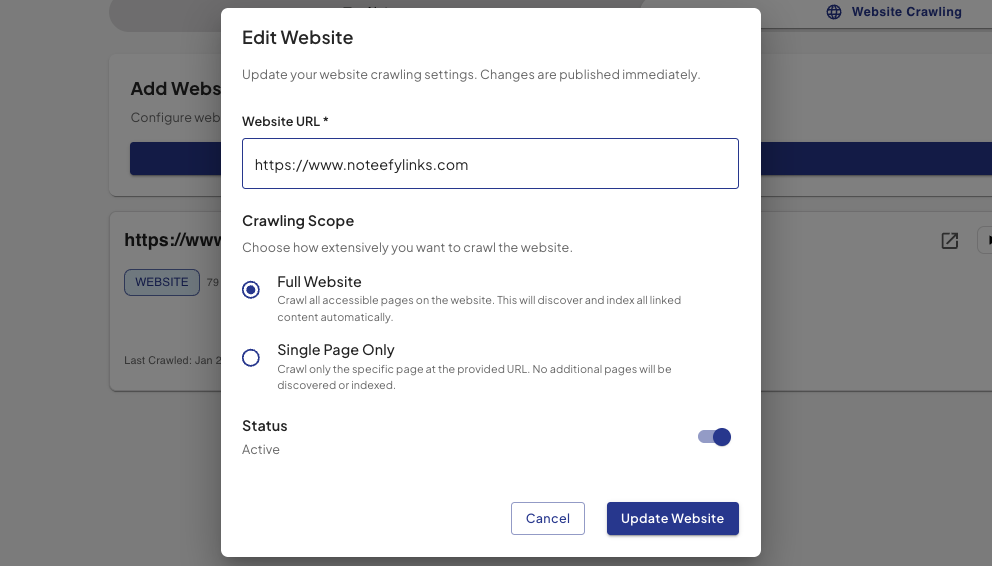
After clicking the pencil icon on your existing website, you will see the above screen that allows you do a couple of things.
- Update the URL that is being crawled
- Change the scope of the website being crawled. You can either have it set up where all pages on the site are being crawled, or so the URL you provided is the only page being crawled.
- Activate or deactivate that website from being crawled
From the main page, you can also remove a website from being crawled by clicking the trash can icon, or can manually restart a website crawl.
🔍 Adding New Websites to Crawl

Adding new websites to crawl (either single page or full site) is a simple process. Clicking the ‘add website’ button shown above will take you to a screen exactly like the editing screen shown above. Simply fill out the details and you’re all set!
📞 Need Help?
Your Customer Success Manager can help you get started or review your setup.
📧 Email: customersuccess@noteefy.app